

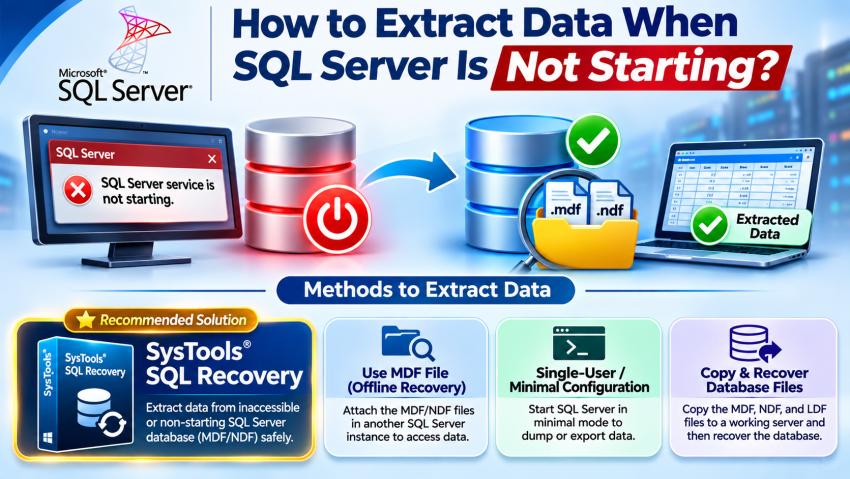
When SQL Server fails to start, accessing databases and retrieving critical records becomes difficult because the Database Engine cannot process queries or establish connections. Startup failures may occur due to corrupted system databases, damaged MDF/NDF files, missing transaction logs, disk failures, or incorrect SQL Server configuration.
However, a SQL Server startup failure does not always mean that database data is permanently inaccessible. You can extract records through an offline recovery approach, access the database using another SQL Server instance, or restore a valid backup.
This guide explains practical methods to extract data when SQL Server is not starting.
Why is SQL Server Not Starting?
Several issues can prevent the SQL Server Database Engine from starting:
- Corrupted system databases: Damage to master, model, or msdb can prevent the instance from starting.
- Damaged MDF/NDF files: Database file corruption can affect database accessibility.
- Missing or corrupted LDF files: Transaction log problems can interrupt database recovery.
- Insufficient disk space: SQL Server may fail to initialize databases when storage is unavailable.
- Permission issues: Incorrect folder or file permissions can prevent SQL Server from accessing database files.
- Hardware or storage failures: Disk errors, unexpected shutdowns, and RAID failures can damage database files.
Methods to Extract Data When SQL Server Is Not Starting
Method 1: Extract Data Using SQL Recovery Tool
If the SQL Server service cannot start and you cannot connect to the database, an offline recovery approach can help retrieve data without depending on a running SQL Server instance.
The SysTools SQL Recovery Tool can scan corrupted MDF and NDF files independently of a live SQL Server connection. It helps recover database objects and records without requiring the original SQL Server instance to start.
Steps to extract SQL Server data:
- Launch the suggested software.
- Browse and select the affected MDF file.
- Choose Quick Scan or Advanced Scan, depending on the corruption level.
- Allow the software to scan and display recoverable database objects.
- Preview tables and their records.
- Select the required database objects and export the recovered data into a supported destination format, such as SQL Server or SQL scripts.
This approach is useful when database files remain available but the SQL Server service is unable to start.
Method 2: Restore the Database from a Backup
If a valid SQL Server backup is available, restoring it is one of the safest ways to regain database access.
- Identify the latest valid full database backup.
- Start a working SQL Server instance.
- Open SQL Server Management Studio (SSMS).
- Select Databases and choose Restore Database.
- Specify the backup file and configure the destination.
- Complete the restoration and verify the recovered records.
If the original instance is unavailable, you can restore the backup on another compatible SQL Server instance.
Method 3: Attach the Database to Another SQL Server Instance
If the SQL Server service is failing because of an instance-level problem, the database files may still be usable on another SQL Server instance.
- Copy the MDF, NDF, and LDF files to a secure location.
- Open SSMS and connect to another working SQL Server instance.
- Right-click Databases and select Attach.
- Add the required MDF file.
- Verify the associated database files and complete the attachment.
- Run queries to verify database accessibility.
Note: This method may fail if the database files themselves are corrupted or the transaction log is missing or damaged. Use a copy of the original files rather than modifying the source files.
Method 4: Repair the SQL Server Startup Problem
If you want to restore the original SQL Server instance, identify and resolve the startup failure.
Check the SQL Server ERRORLOG file to identify the underlying issue. Depending on the error, you may need to:
- Resolve disk space or file permission problems.
- Restore damaged system databases.
- Repair or replace corrupted database files using a valid backup.
- Resolve transaction log or storage-related errors.
- Rebuild system databases if the master database is severely damaged.
Once the Database Engine starts successfully, connect through SSMS and export the required database records.
Conclusion
Extracting data when SQL Server is not starting requires identifying whether the problem is related to the SQL Server instance or the underlying database files. Restoring a backup or attaching the database to another instance can work when the files are accessible.
However, if the MDF or NDF files are corrupted and the SQL Server instance cannot start, an offline recovery solution is a practical alternative. A professional solution helps scan database files independently and extract recoverable records without requiring a live SQL Server connection.