

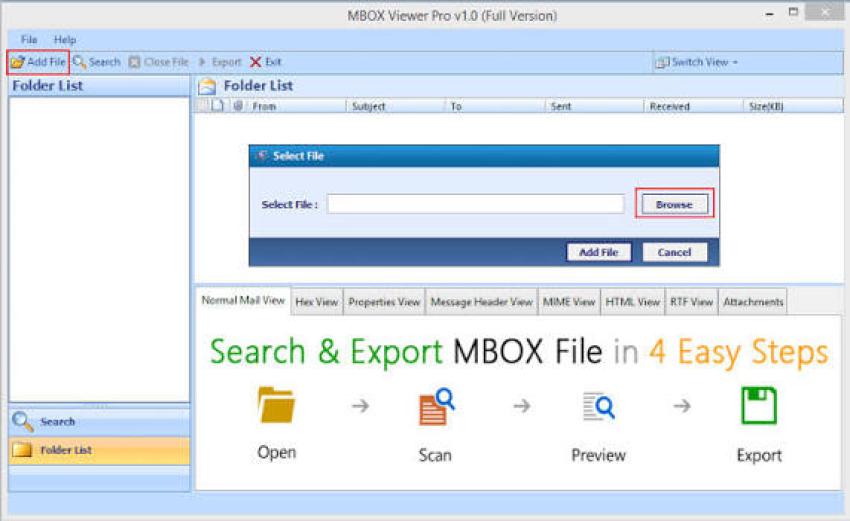
Find Best and Most Secured MBOX Viewer Software to Open, Read, and View Your MBOX Data With Attachments
If you have an MBOX file and want to read the emails stored inside it, you need an email client or an MBOX viewer. MBOX is a file format that stores multiple email messages in a single file. It is commonly used by email applications such as Thunderbird and Apple Mail.
How Do I Open a MBOX File depends on what you want to do with it. If you only need to read emails, a dedicated Windows MBOX Viewer can help. If you want to import emails into an email application, Thunderbird is another option. Some viewers also let you access email attachments without importing the mailbox into an email client.
This guide explains different ways to Open MBOX File content, read stored emails, and access attachments.
What Is an MBOX File?
An MBOX file is a mailbox file that stores multiple email messages in one place. Each message contains its email content, sender and recipient details, date, subject, and other available headers. Depending on the email, it may also contain attachments.
Email applications such as Thunderbird and Apple Mail use MBOX files to store or export mailbox data. Users may also get MBOX files when downloading email backups or exporting messages from an email service. Unlike an EML file, which usually stores one email per file, an MBOX file can contain many emails together. This makes it useful for storing and transferring large collections of email messages.
How Do I Open a MBOX File Using Different Methods?
There are several ways to Open MBOX File content, depending on whether you want to read emails, access attachments, or import messages into an email application.
1. Open an MBOX File Using Thunderbird
Mozilla Thunderbird is a desktop email client that supports importing MBOX files with the help of an appropriate import add-on or supported import feature. It is useful when you want to view mailbox messages within an email application. Once the MBOX file is imported, you can browse emails, read message content, and access attachments supported by Thunderbird.
Steps to open an MBOX file in Thunderbird:
Download and install Mozilla Thunderbird on your computer.
Open Thunderbird and configure an account if required.
Install a compatible MBOX import add-on, if your Thunderbird version does not provide a built-in import option.
Use the import feature to select your MBOX file.
Open the imported mailbox and browse the stored emails.
Thunderbird is a suitable option if you want to work with your emails inside an email client. However, the import process may vary depending on the Thunderbird version and the add-on you use.
2. Open an MBOX File Using a Dedicated MBOX Viewer
A dedicated MBOX viewer is useful when you want to read emails without importing the mailbox into an email client.
An MBOX viewer can display email messages along with details such as the sender, recipient, subject, date, and message content. Some tools also support attachments, allowing you to view or access files included with the emails. If you are looking for How to Open a MBOX File without setting up an email account, a desktop MBOX viewer can be a convenient option.
For better control over your email data, choose a trusted desktop viewer that supports your MBOX file and offers the features you need. If the mailbox contains private or sensitive information, review the tool's privacy practices before opening it.
3. Open an MBOX File Using Apple Mail
Apple Mail supports mailbox data in MBOX format, making it an option for Mac users who want to access emails stored in an MBOX file.
It can be useful when you need to import archived messages into your existing email environment. After importing the mailbox, you can browse the messages and view supported attachments. This method is mainly suitable for users working on macOS. The exact import options may vary depending on the version of Apple Mail.
4. Open an MBOX File Using a Text Editor
An MBOX file stores email messages in a text-based format, so you can open it with a plain text editor such as Notepad or another text editor.
However, this method is not ideal for reading emails comfortably. The file may contain raw email headers, MIME boundaries, encoded message content, and attachment data. As a result, the content may look confusing or difficult to understand. A text editor can be useful when you need to inspect the raw structure of an MBOX file, but it is not the most convenient way to read a mailbox or view attachments.
How to Read Emails and Attachments From an MBOX File
If your MBOX file contains important emails with attachments, you need a method that can display both the message content and its associated files. A dedicated MBOX viewer with attachment support can help you read email messages and access supported attachments in one place. This is useful when you need to review documents, images, or other files received through email.
When choosing a viewer, check whether it supports the MBOX file you have and whether it can display the email content and attachments you need. Some tools may only display email messages, while others offer additional attachment viewing options.
If your goal is simply to Open MBOX File content and read emails, a viewer may be more convenient than importing the mailbox into a full email client.
Can I Open an MBOX File Without an Email Client?
Yes. You can open an MBOX file without installing or configuring a traditional email client by using a compatible MBOX viewer. A dedicated viewer allows you to access stored email messages directly from the mailbox file. Depending on the tool, you may also be able to view attachments and inspect email details.
This approach is useful when you have an archived mailbox and only need to read its contents. It can also help when you do not want to connect an email account just to view old messages. If you are searching for How Do I Open a MBOX File without an email client, choose a viewer that supports your mailbox format and the features you need.
What to Consider Before Opening an MBOX File
Before opening an MBOX file, keep a few things in mind:
Keep a backup: Make a copy of the original MBOX file before importing or working with it.
Check file compatibility: Make sure the application supports the MBOX file you have.
Choose the right method: Use an email client if you want to import messages, or a viewer if you only need to read them.
Check attachment support: Not every MBOX viewer can display or open attachments.
Protect private data: Use a trusted application, especially when the mailbox contains confidential emails.
These precautions can help you access your mailbox while reducing the risk of accidentally changing or losing the original data.
Final Thoughts
There are several ways to Open MBOX File content, including Thunderbird, Apple Mail, and dedicated MBOX viewers. The right method depends on whether you want to import emails into an email client, read stored messages, or access attachments.
Thunderbird is useful for working with imported mailbox data, while Apple Mail provides an option for Mac users. A dedicated MBOX viewer can be more convenient when you only want to read emails and view supported attachments without configuring an email account.
If your main goal is to Open MBOX File content and read emails directly, choose a viewer that supports your mailbox and the features you need.