

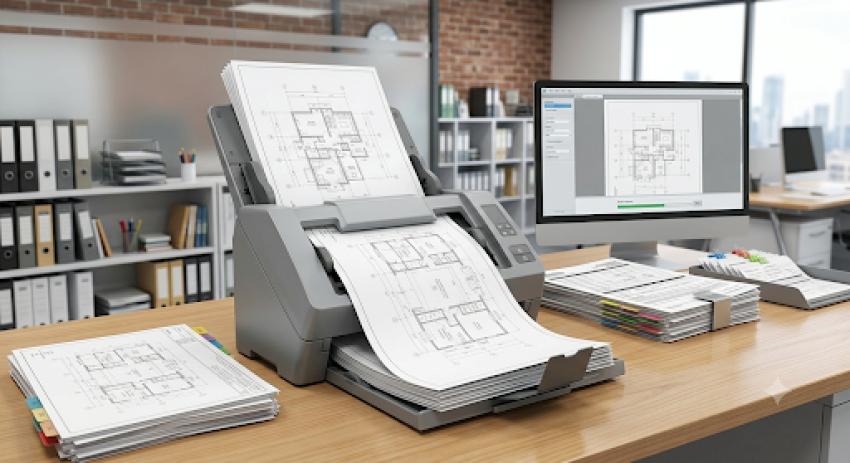
A3 documents are common in workplaces where information needs more space. Architects may handle drawings and plans, banks may work with forms and records, while government teams often deal with applications, maps, and official documents. Managing these papers manually can take time, especially when several pages need to be digitised.
A reliable scanning setup can help teams turn physical records into searchable digital files while keeping everyday document workflows organised.
Start by Sorting Documents
Before scanning, separate documents by size, paper type and purpose. Keep A3 sheets together and remove staples, clips and damaged pages where necessary. Grouping similar documents can make batch scanning easier and reduce interruptions.
It is also useful to decide the required resolution and colour mode before starting. Simple text documents may not need the same settings as detailed architectural drawings or colour records.
Make Duplex Scanning Part of the Workflow
Many business documents contain information on both sides. Scanning each side separately adds unnecessary steps and increases the chance of pages being missed.
The imageFORMULA DR-M1060II supports both simplex and duplex scanning. At 200dpi and 300dpi, it can scan greyscale documents at up to 60 pages per minute in simplex and 120 images per minute in duplex. For colour documents, speeds reach up to 60ppm in simplex and 120ipm in duplex at 200dpi.
This makes it suitable for teams handling mixed batches of documents regularly.
Handle Different Document Types
A3 paperwork is rarely limited to standard sheets. Offices may also need to digitise business cards, cards, forms and longer documents.
The scanner supports document widths from 50.8mm to 300mm and lengths from 70mm to 432mm. With Long Document mode, it can handle documents up to 3,000mm long. Its straight paper path also supports media up to 255g/m².
For delicate or unusual documents, teams should check the recommended paper path and settings before scanning.
Keep Large Batches Moving
A busy department may have hundreds of pages waiting to be digitised. The 80-sheet Automatic Document Feeder can help reduce the need to load pages individually.
Features such as double-feed release and folio scanning can also support more varied document workflows. With a compact desktop design, the scanner can fit into many office environments without requiring a large dedicated area.
Choose Scanning Settings Carefully
Higher resolution is not always necessary. For ordinary text records, 200dpi or 300dpi may be sufficient, while documents containing fine drawings or small details may benefit from higher settings.
The scanner offers output resolutions from 100dpi to 600dpi, along with modes including black and white, greyscale and 24-bit colour. Choosing settings according to the document can help balance readability, file size and scanning time.
Efficient A3 document management depends on good preparation, suitable scanning settings and equipment that can handle different types of paperwork. By organising documents before scanning and choosing a workflow suited to their requirements, architecture, banking and government teams can make digitisation more consistent and manageable.