

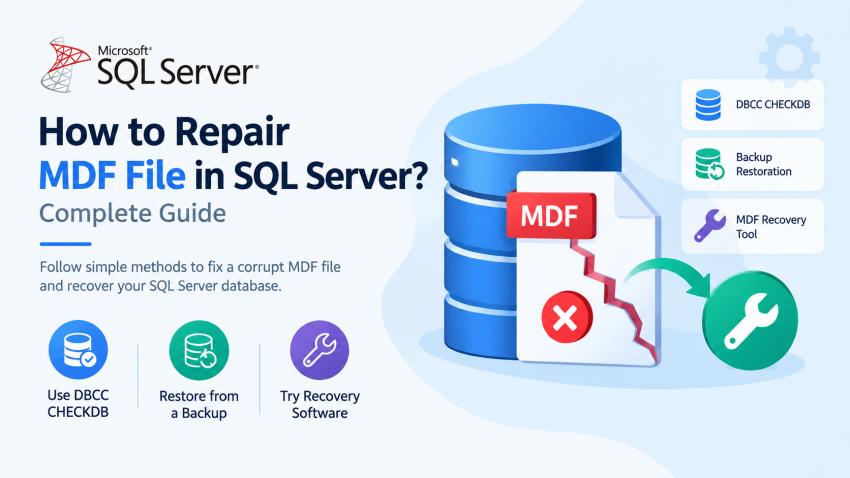
A corrupt MDF file can prevent users from accessing their SQL Server database, retrieving important records, or performing regular database operations. Issues such as sudden system shutdowns, hardware failures, disk errors, and SQL Server crashes can affect database file integrity. In some cases, users may encounter errors while attaching the MDF file or opening the database in SQL Server Management Studio (SSMS).
When a database becomes inaccessible, administrators need a reliable way to identify the cause and recover the stored data. SQL Server provides built-in commands for checking database consistency, while specialized MDF recovery tools can help recover data when conventional methods are insufficient.
In this blog, we will explain how to repair MDF file in SQL Server using practical methods, including database consistency checks, backup restoration, and professional SQL recovery software.
What Is an MDF File in SQL Server?
MDF stands for Master Database File, although in the context of a user database, it refers to the primary data file. SQL Server uses MDF files to store database information, including tables, indexes, and other database objects.
A database may also contain NDF files for secondary data and LDF files for transaction logs. These files work together to support database storage and recovery operations.
When the MDF file becomes corrupted, SQL Server may be unable to read database pages or access stored objects. The severity of the issue determines whether the database can be repaired using built-in SQL Server tools or requires a specialized recovery solution.
Why Does an MDF File Become Corrupt?
MDF file corruption can occur due to various hardware, software, and operational issues. Identifying the possible cause helps database administrators take appropriate corrective measures.
Common Causes of MDF File Corruption
- Unexpected system shutdown: A sudden power failure or server shutdown can interrupt ongoing database operations.
- Hardware failure: Damaged hard drives, storage controllers, or RAID issues can affect MDF file integrity.
- Disk errors: Bad sectors and file system problems may prevent SQL Server from reading database pages correctly.
- SQL Server crashes: Unexpected service interruptions can result in incomplete or inconsistent database operations.
- Operating system failure: System crashes during read or write operations may contribute to database corruption.
- Insufficient storage space: A lack of available disk space can interrupt database growth and related operations.
- Improper file movement: Incorrectly moving or handling database files can cause attachment failures or access issues.
- Malware and software issues: Certain system-level incidents may damage or modify database files.
Not every MDF access problem is caused by corruption. File permissions, missing dependencies, incorrect file paths, and SQL Server configuration issues should also be investigated before performing repair operations.
Symptoms of a Corrupt MDF File
Recognizing the symptoms of corruption helps administrators determine whether they need to investigate the database file further.
Some common signs include:
- SQL Server fails to attach the MDF file.
- The database enters SUSPECT or RECOVERY_PENDING mode.
- Users cannot access specific tables or records.
- SQL Server reports consistency errors during database checks.
- Queries fail because certain database pages cannot be read.
- The database fails to open after a system crash.
- Users receive errors when attempting to restore or attach the database.
- Stored procedures, views, or other database objects become inaccessible.
The exact error message is important because similar symptoms can occur due to different underlying problems. Review the SQL Server error log and database status before choosing a repair method.
How to Repair MDF File in SQL Server?
There is no single repair method that works for every corrupted MDF file. The right approach depends on whether the database is accessible, whether a valid backup exists, and how severely the file is damaged.
The following methods cover commonly considered recovery options.
Method 1: Check and Repair the Database Using DBCC CHECKDB
SQL Server includes the DBCC CHECKDB command to examine the logical and physical integrity of a database. It helps identify database consistency errors and provides information about the type of corruption detected.
This method is suitable for databases that can still be accessed through the SQL Server instance. Administrators should review the results before deciding whether any repair operation is appropriate.
Check Database Integrity
Run the following command in SQL Server Management Studio:
DBCC CHECKDB ('YourDatabaseName')
WITH NO_INFOMSGS, ALL_ERRORMSGS;
This command checks the database and reports any detected consistency errors. Replace YourDatabaseName with the name of your database.
After the command finishes, carefully review the output. SQL Server may recommend specific repair options depending on the detected issues.
Understand DBCC CHECKDB Repair Options
SQL Server supports different repair options, but they are not interchangeable.
- REPAIR_REBUILD: Can resolve certain repairable issues, such as some index-related problems, without the data-loss implications of REPAIR_ALLOW_DATA_LOSS.
- REPAIR_ALLOW_DATA_LOSS: May repair certain structural issues but can result in deleted or lost data. It should be considered only after evaluating backup and recovery alternatives.
- REPAIR_FAST: This option is retained for compatibility in applicable SQL Server versions but does not perform repair operations in modern SQL Server versions.
Microsoft generally recommends restoring from a known good backup rather than relying on repair options that may result in data loss.
Limitations of DBCC CHECKDB
Although DBCC CHECKDB is a useful database integrity checking tool, it is not a guaranteed solution for every MDF corruption scenario.
- It may not repair severe corruption.
- Some errors may require restoring from a backup.
- Repair operations can result in data loss.
- The database may remain inaccessible after attempted repair.
- Corruption caused by underlying hardware or storage problems may recur.
- The command does not guarantee recovery of all missing or damaged records.
Important: Avoid running destructive repair commands on the original production database without an appropriate recovery plan and backup evaluation.
Method 2: Restore the Database from a Valid Backup
Restoring a database from a valid backup is generally the preferred approach when the backup contains the required data. It allows administrators to recover a known database state without directly modifying the corrupt MDF file.
SQL Server supports full, differential, and transaction log backups, depending on the backup strategy and recovery model. The appropriate restore sequence depends on the available backup files.
Why Restore from Backup?
A backup-based recovery process can help preserve database consistency and reduce the need for potentially destructive repair operations.
It is particularly useful when:
- The database is severely corrupted.
- SQL Server cannot access important database pages.
- The MDF file has sustained extensive damage.
- A recent full backup is available.
- The organization has an established disaster recovery plan.
Before restoring, verify the backup's integrity and determine whether it contains the data required by the business.
Restore Database Using SSMS
You can restore a database through SQL Server Management Studio by selecting the database restore option and specifying the relevant backup.
The general process involves:
- Open SSMS and connect to the SQL Server instance.
- Select the database restore option.
- Choose the appropriate backup source.
- Review the available backup sets.
- Configure the destination and file paths.
- Start the restoration process.
- Verify the restored database and its contents.
After restoration, check the database objects, records, permissions, and application connectivity. A successful restore operation does not eliminate the need for post-recovery validation.
Limitations of Backup Restoration
Backup restoration depends on the availability and quality of the backup files.
- An outdated backup may not contain recent transactions.
- A damaged backup may fail during restoration.
- Missing transaction log backups can affect point-in-time recovery.
- The backup may not include the required database state.
- Restoring a database can require additional storage and downtime.
When no usable backup is available, administrators may need to evaluate alternative data recovery options.
Method 3: Repair MDF File Using SQL Server Recovery Software
When an MDF file is inaccessible or severely corrupted, specialized SQL Server recovery software can be considered as an alternative to conventional database repair methods.
These applications are designed to analyze SQL Server database files and recover supported database objects and records. Depending on the software, users may be able to work with MDF files without connecting to an active SQL Server instance.
One such option is SysTools MDF Repair Tool, which supports recovery from corrupt SQL Server database files. It can be considered when administrators need to preview recoverable data and export it to a supported destination.
How Does MDF Recovery Software Work?
The advanced MDF recovery utility generally follows a file analysis and recovery workflow. Instead of depending exclusively on SQL Server's database engine to open the damaged database, it analyzes the database file to identify recoverable structures and content.
The recovery process may include:
Adding the corrupt MDF file to the application.
Scanning the file to identify recoverable information.
Analyzing database structures and available records.
Previewing recovered database objects.
Selecting the required data for export.
Saving the recovered information to a supported destination.
The exact process and available features vary between recovery tools.
Step 1: Add the Corrupt MDF File
Launch the SQL recovery application and browse to the location of the affected MDF file.
Select the file you want to analyze. If the database uses secondary NDF files, check whether the recovery software supports them and whether the required files are available.
It is advisable to preserve the original file and perform recovery on a working copy whenever possible.
Step 2: Scan the MDF File
Recovery software may offer different scanning modes for analyzing database corruption. For example, SysTools SQL Recovery Tool provides scanning options designed to handle different corruption scenarios.
Quick Scan can be used for certain corruption conditions.
Advanced Scan may be useful when the file has more serious corruption.
The effectiveness of a scan depends on the condition of the MDF file, the extent of corruption, and the recovery software's capabilities.
Step 3: Preview Recovered Database Objects
After scanning, review the recovered database content through the preview interface, where supported.
Depending on the recovery tool and the file condition, users may be able to preview:
Tables and records
Views
Stored procedures
Functions
Database structures
Other supported SQL Server objects
Previewing the data helps administrators evaluate which information can be recovered before beginning the export process.
Step 4: Export the Recovered Data
Once the recoverable content has been reviewed, select the required objects and export them to a supported destination.
The advanced tool supports exporting recovered data to SQL Server and SQL scripts, subject to the tool's supported functionality and recovery results.
Exporting selected objects can help users focus on the data they need instead of attempting to restore the entire corrupted database.
Step 5: Verify the Recovered Database
After completing the export, open the destination database and review the recovered content.
Check whether the required tables, records, and other objects are available. If the database is being restored for production use, perform additional validation of relationships, constraints, permissions, and application functionality.
Note: Recovery software cannot guarantee complete recovery from every damaged MDF file. Results depend on the severity of corruption, the condition of the source file, and the capabilities of the recovery application.
Why Use a Professional MDF Recovery Tool?
SQL Server administrators may consider a specialized recovery tool when standard repair methods are unable to provide the required results.
Recover Data from Inaccessible MDF Files
A file-based recovery application may help analyze an MDF file when the database cannot be opened through the SQL Server instance. This can provide an additional recovery option when conventional database access is unavailable.
Preview Recovered Database Content
Preview functionality allows users to examine available database objects and records before exporting them. This can be useful when only specific tables or data are required.
Recover Selected Database Objects
Instead of focusing exclusively on full database restoration, some recovery tools allow users to select supported database objects for export. This may help administrators prioritize important data.
Support Offline Recovery Scenarios
Some recovery applications work without requiring a live SQL Server connection. This can be useful when the SQL Server instance is unavailable, stopped, or unable to open the corrupt database.
Export Data to Supported Destinations
Depending on the application, recovered content may be exported to SQL Server or SQL scripts. Administrators should verify the available export options and confirm that the destination is suitable for their recovery requirements.
Important Precautions Before Repairing an MDF File
Repairing a corrupt MDF file without proper precautions can increase the risk of data loss. Before beginning the process, administrators should take the following steps.
- Preserve the original MDF file: Create a working copy to avoid unnecessarily modifying the source.
- Check available backups: Determine whether a valid backup can provide a safer recovery path.
- Identify the corruption cause: Review SQL Server error logs and storage conditions.
- Avoid unnecessary repair commands: Do not use potentially destructive options without understanding their impact.
- Use a controlled recovery environment: Test recovery procedures before applying changes to production.
- Verify recovered data: Check the integrity and completeness of the recovered database content.
- Plan for downtime: Inform users and application teams before performing operations that affect database availability.
- Validate the storage system: Address disk or hardware issues to prevent recurring corruption.
- Document recovery actions: Keep track of the methods, tools, and outcomes used during recovery.
Conclusion
Repairing a corrupt MDF file in SQL Server requires a recovery approach that considers database accessibility, corruption severity, and backup availability. Built-in tools such as DBCC CHECKDB can help identify database integrity issues, while backup restoration provides a recovery path when a valid backup is available.
When a database remains inaccessible or conventional repair methods are insufficient, specialized SQL Server recovery software can help administrators assess and recover supported data from MDF files. A professional solution provides an option to preview recoverable database content and export selected data to supported destinations.
Before beginning any repair process, preserve the original MDF file, evaluate available backups, and validate recovered data carefully. A structured recovery process helps reduce unnecessary data loss and supports a safer return to database operations.