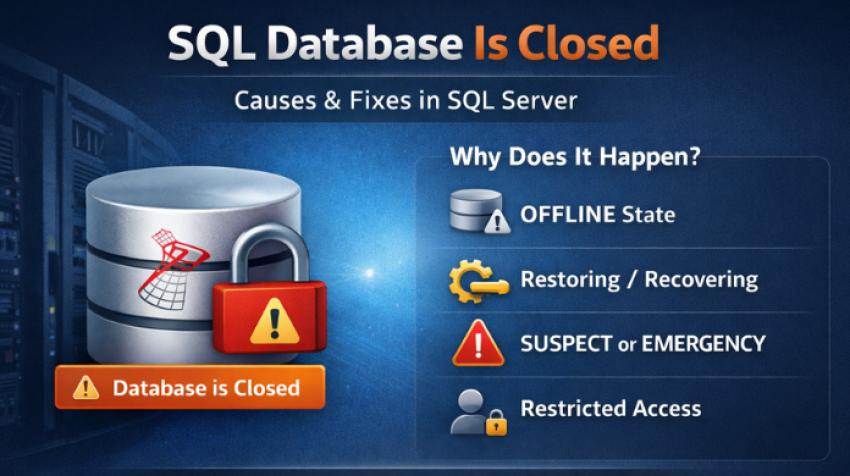
When administrators or applications try to access a database and encounter the “SQL database is closed” message, it usually indicates that the database is not available for user connections at that moment.
In environments running Microsoft’s database platform, this problem is closely tied to database state, server recovery behavior, and maintenance operations performed on the instance maintained by Microsoft.
This guide explains what the SQL database is closed issue actually means, why it happens in SQL Server, how to fix it safely, and how to prevent it in production environments.
What Does “SQL Database is Closed” Mean?
In SQL Server terminology, a database is considered closed when:
- it is not online and accessible for user sessions, or
- the engine has intentionally restricted access to it, or
- the database is in a transitional or recovery-related state.
From an application point of view, this appears simply as:
The database is closed and cannot be accessed.
Behind the scenes, SQL Server is protecting the database because it cannot guarantee transactional consistency or availability at that time.
Common Situations Where the “SQL Database is Closed” Error Appears
The error is not a single fault. It is a symptom of different internal database states.
Below are the most frequent real-world causes.
1. The database is in OFFLINE state
A database can be taken offline intentionally for:
- maintenance
- file relocation
- manual recovery
- infrastructure changes
When a database is offline, SQL Server physically detaches it from normal processing and rejects all user connections.
Typical scenarios
- A DBA set the database offline and forgot to bring it back online.
- A deployment or patch script failed before restoring the database state.
Impact
- Applications immediately fail.
- Backup, monitoring and reporting jobs also fail.
2. The database is in RECOVERY or RESTORING state
During:
- restore operations
- crash recovery
- log replay
During SQL Server stuck in restoring, the server temporarily locks the database to complete internal consistency checks.
This is one of the most misunderstood causes of the SQL database is closed error.
Why it happens
- A full database restore is in progress.
- A log restore chain is incomplete.
- SQL Server restarted and is recovering large transaction logs.
Impact
The database exists, but connections are blocked.
Administrators often think the database is broken, when it is still recovering.
3. The database is in SUSPECT or EMERGENCY state
If SQL Server detects structural or transactional problems, it protects the database by marking it as:
SQL Server in SUSPECT Mode
or placing it in EMERGENCY mode manually by an administrator
In such situations, SQL Server cannot guarantee data integrity and therefore prevents normal access.
Common triggers
- data file or log file corruption
- storage-level failures
- abrupt server shutdown during heavy write activity
- missing or damaged MDF / LDF files
From the user side, this frequently surfaces as a closed or inaccessible database.
4. The database is in SINGLE_USER or RESTRICTED_USER mode
Sometimes the database is not technically closed, but effectively unavailable.
This happens when:
- the database allows only one connection, or
- only privileged roles can connect
If an application tries to connect while the single slot is already taken, it often returns a message similar to “database is closed” or “cannot open database”.
Typical reasons
- maintenance tasks
- schema changes
- repair operations
- manual troubleshooting sessions
5. A failed attach or file path issue
If the database was detached and then reattached incorrectly, or if the underlying files are missing or moved, SQL Server may register the database but cannot bring it online.
This produces a closed or inaccessible database state.
6. Storage or I/O layer problems
Even when SQL Server itself is functioning properly, it relies entirely on the storage subsystem.
Examples:
- disk latency spikes
- inaccessible volumes
- SAN or virtual disk disconnects
- permission changes on database folders
In these cases, SQL Server deliberately closes or keeps the database unavailable to avoid partial writes and corruption.
How to Identify the Exact Reason?
Instead of relying only on the application error, always check the actual database state inside SQL Server.
Look at the database status from the system views or management tools and confirm:
- ONLINE
- OFFLINE
- RESTORING
- RECOVERING
- SUSPECT
- EMERGENCY
Once you know the state, you can select the correct fix instead of forcing risky repair actions.
How to Fix the “SQL Database is Closed” Problem?
The correct resolution depends entirely on the current database state.
Below are practical, safe approaches for each situation.
If the database is OFFLINE
Bring the database back online after confirming that no file-level maintenance is still running.
Key checks before bringing it online:
the MDF and LDF files exist
storage is accessible
no other maintenance window is active
Once brought online, the database should immediately accept connections.
If the database is in RESTORING or RECOVERING
Do not interrupt the process unless you are certain it is stuck.
Recommended actions:
- verify whether a restore operation is still running
- check SQL Server error logs for recovery progress
- confirm whether additional log backups are required to complete the restore chain
In many real-world cases, the issue resolves automatically after recovery completes.
If the database is in SUSPECT state
This is a high-risk scenario.
The safest approach is:
Identify the root cause (I/O failure, corruption, missing file, unexpected shutdown).
Restore the database from a known good backup.
Repair operations should be treated as a last resort, because they can remove damaged data pages and cause permanent data loss.
If the database is in EMERGENCY mode
Emergency mode allows limited access for administrators to extract data.
However, it does not automatically fix corruption.
The proper workflow is:
- take a fresh copy of the damaged files
- attempt logical consistency checks
- recover data using backup or specialized recovery methods if backups are unavailable
If the database is in SINGLE_USER or RESTRICTED_USER mode
Verify whether:
- a DBA session
- an automated job
- a monitoring tool
is holding the only allowed connection.
Once that session is released and access mode is restored to normal, the database becomes available again.
If the problem is caused by missing or inaccessible files
Check:
- file paths registered in SQL Server
- Windows permissions on the database directories
- availability of the storage volume
Once SQL Server can read and write both data and log files again, the database can be brought online safely.
Why Forcing Repair is Risky for Closed Databases?
A common mistake is to immediately run aggressive repair commands as soon as the database appears closed.
This is dangerous because:
- the database may simply be recovering
- the problem may be caused by temporary I/O unavailability
- repair can remove corrupted rows, indexes, and allocation pages
In SEO and enterprise environments where business data is critical, recovery should always prioritize:
restore first, repair only if restore is impossible.
When a Recovery Tool Becomes Relevant?
If:
- no usable backup exists,
- data files are corrupted,
- and the database remains closed even after emergency troubleshooting,
a specialized SQL database recovery utility can be used to extract data from damaged files and rebuild objects into a clean database.
In content targeted toward database recovery solutions, this is the natural point where a professional solution like SysTools SQL data recovery tool can be positioned as an alternative to destructive repair when backups are not available.
Summary
The SQL database is closed error is not a single technical failure. It is a protective response from SQL Server when the engine cannot safely provide access to the database.
In most real environments, the root cause is one of the following:
- the database is offline
- recovery or restore is in progress
- corruption has been detected
- access mode is restricted
- underlying storage is unavailable
Correct diagnosis of the database state is the key to resolving the issue safely.
Avoid rushing into repair operations. Instead, confirm the exact state, review logs, and rely on proper restore or controlled recovery workflows to bring the database back online.