

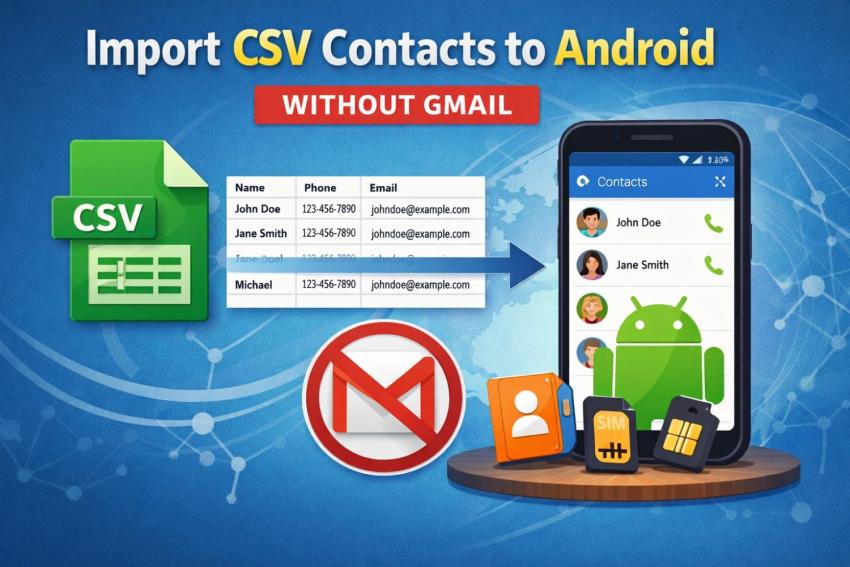
In today’s digital world, Android phones are crucial in everyone's life as they carry the most essential data and information. It also includes managing the contact list, as it is a way to connect with other people, whether for personal or professional use, and it provides users with the flexibility to store and access their information securely.
Are you trying to import CSV contacts to Android without Gmail, and don't know the exact procedure to transfer CSV contacts to Android phone? If you have saved your contact list in CSV format, and you need to import those contacts to your device without linking a Gmail account, then there are many easy and best techniques for doing this process. In this post, the process of import contacts from CSV file to Android is explained efficiently and simply.
This guide will explain to you the step-by-step process of importing a CSV file to your Android device and also maintain privacy by providing you with complete control over your contact data. You will also learn how to convert a CSV file into a compatible format and import it directly to the device without logging in with a Gmail account.
Why Import Contacts from CSV file to Android?
As you all are aware, CSV (Comma-Separated Values) files are widely used for storing and managing contact data due to their simplicity with various platforms like Excel, CRM tools, etc. Many users need to import CSV contacts to Android without Gmail, so in that case, we need to first transfer contacts from the CSV file to another file format for better conversion.
Let’s understand some benefits of importing contacts from a CSV file to Android..
Provides Platform Flexibility
It provides cross-platform compatibility as CSV files are usually supported by various tools like Microsoft Excel, Apple Contacts, and most CRM systems. It allows easy export and editing to import them into your device accurately.
Supports Gmail-Free Contact Management
Not every user needs to use a Google account to manage their contact data. Some users need to keep their personal or business data without linking it with their Gmail account on their Android devices to maintain privacy or security. Import CSV Contacts to Android without Gmail provides an ideal option for users to have control over their contacts.
Allows Bulk Contacts Transfer
If you are maintaining thousands of contacts, in that case manual entry of each contact is very difficult and time-consuming. If your contacts are in CSV file format, it simplifies the bulk transfer of contacts to your Android devices seamlessly.
Organized Data
CSV files import contact data to your device in a clean and proper format. It ensures that users provide structured data that allows for editing and maintaining fields like names, phone numbers, and emails before importing it to Android.
These are the simple and different features to know the need to transfer contacts from CSV file to Android.
How to Import CSV Contacts to Android without Gmail?
There are mainly two different methods to connect contacts on Android. You can add contacts manually or with the help of specialized software, which provides the perfect solutions to users.
#1 Manual Method to Import Contacts from CSV file to Android
Step1. Open a file in Excel
Correct the columns of name, phone number, email address, etc.
Step2. Save the file in CSV format
Select File>Save As>CSV
Step3. Use an online converter( CSV to VCF Converter)
- Browse the CSV file
- Select the map fields option
- Download the VCF File
Step4. Import the VCF file into Android Contacts
- Tap Contacts>Settings>Import from VCF file
- Choose the File and complete the process of Import
Drawbacks of Manual Methods
- If you are using manual techniques to import CSV contacts to Android without Gmail. It does not offer advanced and accurate field mapping of multiple contacts.
- These methods have a limit on transferring contacts to your device and create many restrictions on uploading contacts.
- If you are doing the process of import contacts from CSV file to Android manually, then there is a risk of data loss as it does not provide any privacy & security to the contact information.
- It does not support vCard version (2.1 or 3.0), which leads to major import errors and incomplete data at the time of transferring contacts to devices.
#2 Import CSV Contacts to Android without Gmail - Try Automated Tool
The most effective and error-free method for handling big contact lists or complicated data is to use software to easily connect CSV contacts to Android. Professional solutions provide more control over field mapping, formatting, and output while streamlining the process compared to manual techniques.Now, if you want to understand how to import CSV file to Android with the help of a specialized SysTools Excel to vCard Converter Software.
Step1. Create an XLS file
Prepare your XLS file, including structured data with columns like name, phone number, etc.
Step2. Download SysTools Excel to vCard Converter
Install the software on your device.
Step3. Map the columns
- Upload the XLS/ CSV file into the software
- It automatically maps the field to vCard properties
Step4. Select Android Compatible vCard Version
Choose vCard version 2.1 or 3.0
Step5. Choose CSV to VCF
Select the “Convert” option to create a VCF file of contacts
Step6. Import a VCF file to an Android device
- Transfer the file to your device
- Tap Settings>Import> from the VCF file
These are the steps that are used for the expertise solution.
Benefits of Using Software to Import Contacts from CSV File
- It supports a large contact file, which easily manages contacts and doesn’t need to add contacts manually, as it automatically imports contacts.
- Some tools, like Excel to vCard Converter, are helpful to you to connect contacts on Android in a compatible format by converting a CSV file to a VCF file format.
- If you have proper knowledge of how to import CSV contacts to Android without Gmail with the help of software, then you can save time and can also focus on improving your network.
- It also provides options to filter your contacts, like editing, deleting, or removing unwanted contacts, so that you can create a clean and original contact file.
- By using this special software, your data of contacts remains secure, and there will be no chance of data loss as users can have full control over their phonebook.
Concluding Words
Import contacts from CSV file to Android is possible without using Gmail securely and accurately while having complete control over data. This comprehensive guide has provided you with two best ways to add contacts to Android device by doing it manually and using innovative software. You have to first learn how to import CSV contacts to Android without Gmail in a better and more efficient manner, and always try to build your network with the help of the right and beneficial techniques.



